

OIDC SSO is a paid feature. If you’re using Infisical Cloud, then it is
available under the Pro Tier. If you’re self-hosting Infisical, then you
should contact sales@infisical.com to purchase an enterprise license to use
it.
- The identity provider (Okta, Google, Azure AD, etc.) should support OIDC.
- Users in the IdP should have a configured
emailandgiven_name.
Setup Identity Provider
1.1. Register your application with the IdP to obtain a Client ID and Client Secret. These credentials are used by Infisical to authenticate with your IdP.1.2. Configure Redirect URL to be
https://app.infisical.com/api/v1/sso/oidc/callback. If you’re self-hosting Infisical, replace the domain with your own.1.3. Configure the scopes needed by Infisical (email, profile, openid) and ensure that they are mapped to the ID token claims.1.4. Access the IdP’s OIDC discovery document (usually located at https://<idp-domain>/.well-known/openid-configuration). This document contains important endpoints such as authorization, token, userinfo, and keys.Finish configuring OIDC in Infisical
2.1. Back in Infisical, in the Organization settings > Security > OIDC, click Manage
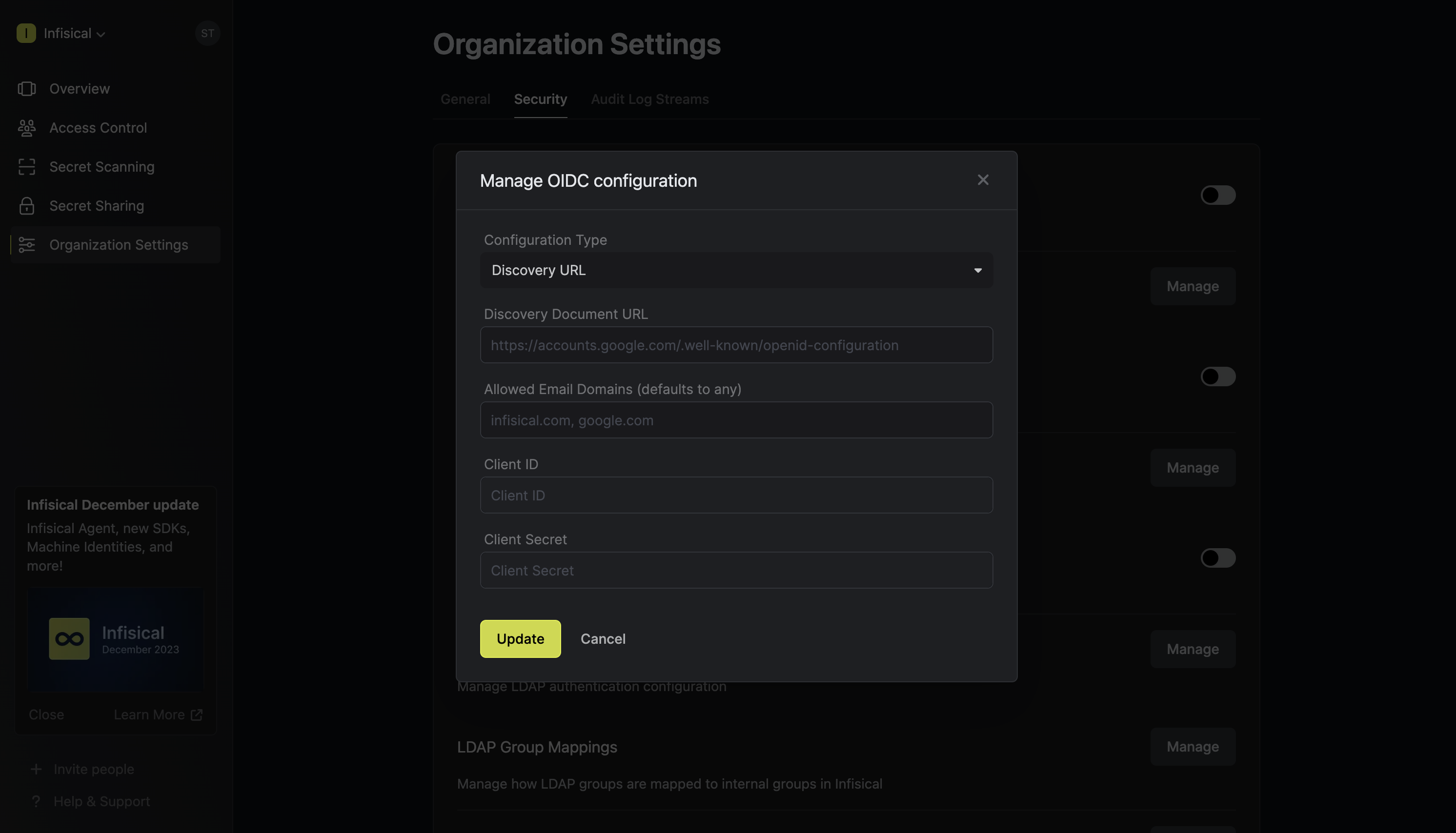
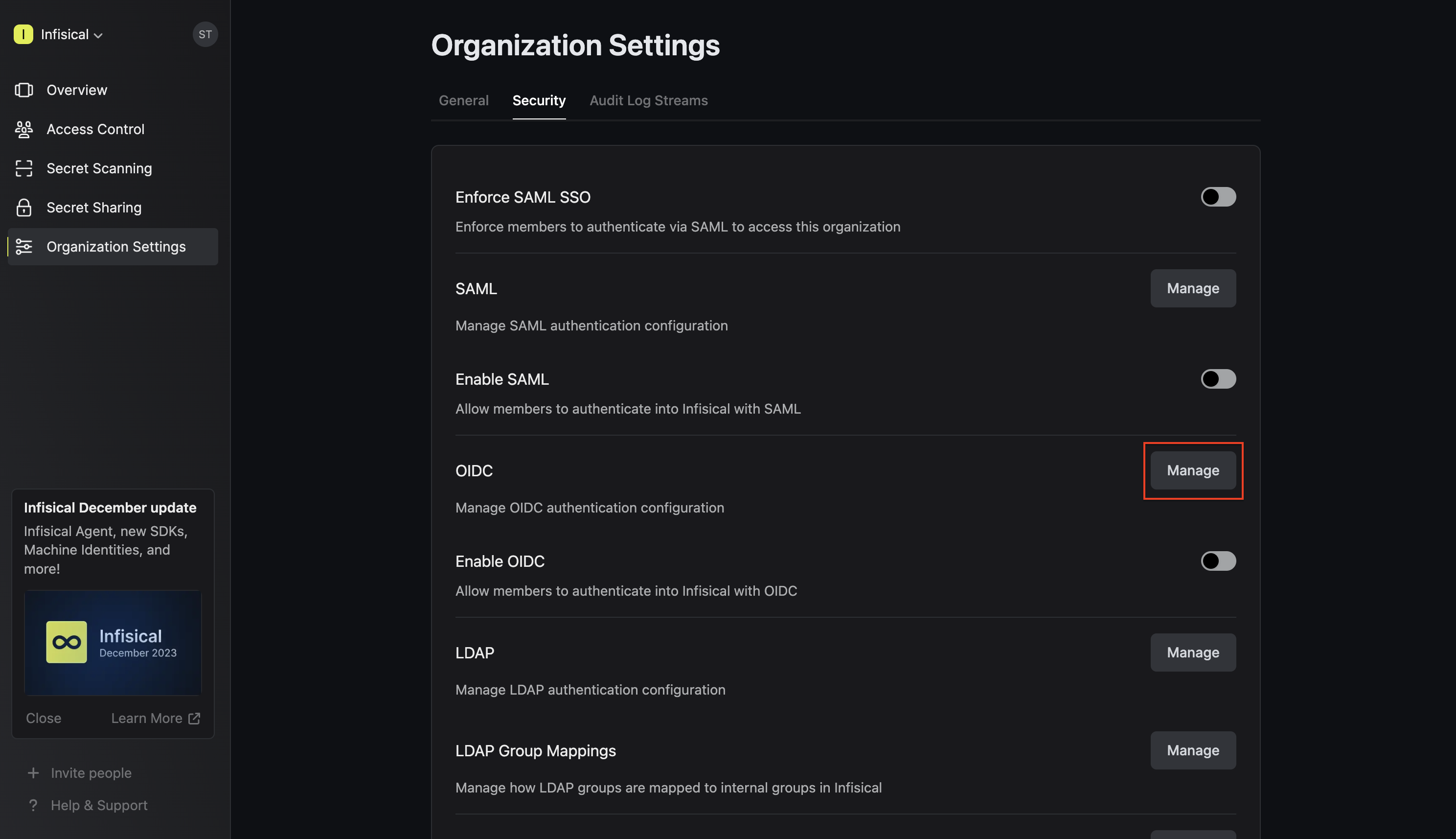 2.2. You can configure OIDC either through the Discovery URL (Recommended) or by inputting custom endpoints.To configure OIDC via Discovery URL, set the Configuration Type field to Discovery URL and fill out the Discovery Document URL field.
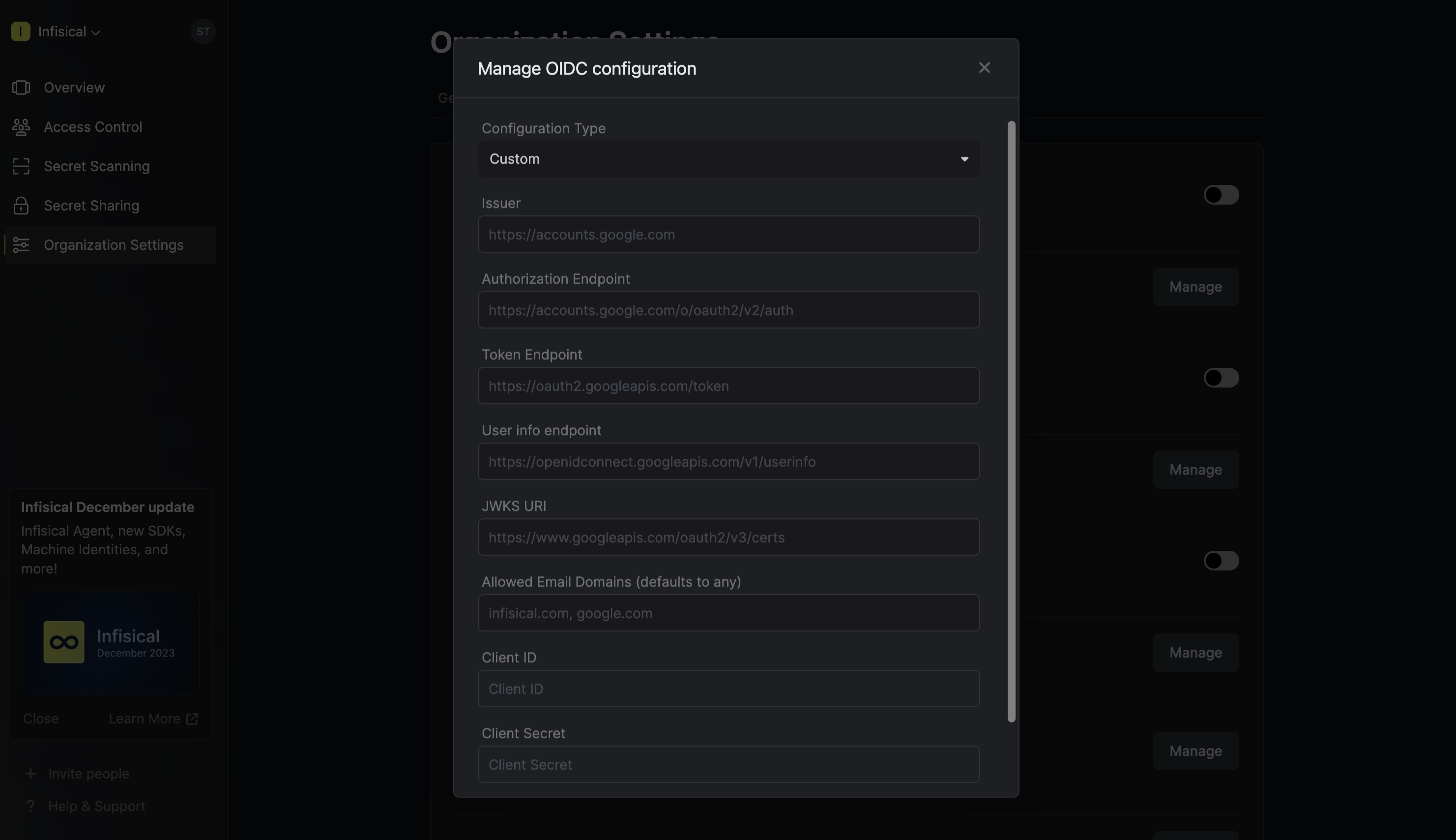
 To configure OIDC via the custom endpoints, set the Configuration Type field to Custom and input the required endpoint fields.
 2.3. Optionally, you can define a whitelist of allowed email domains.Finally, fill out the Client ID and Client Secret fields and press Update to complete the required configuration.
2.2. You can configure OIDC either through the Discovery URL (Recommended) or by inputting custom endpoints.To configure OIDC via Discovery URL, set the Configuration Type field to Discovery URL and fill out the Discovery Document URL field.Note that the Discovery Document URL typically takes the form:
https://<idp-domain>/.well-known/openid-configuration.To configure OIDC via the custom endpoints, set the Configuration Type field to Custom and input the required endpoint fields.
2.3. Optionally, you can define a whitelist of allowed email domains.Finally, fill out the Client ID and Client Secret fields and press Update to complete the required configuration.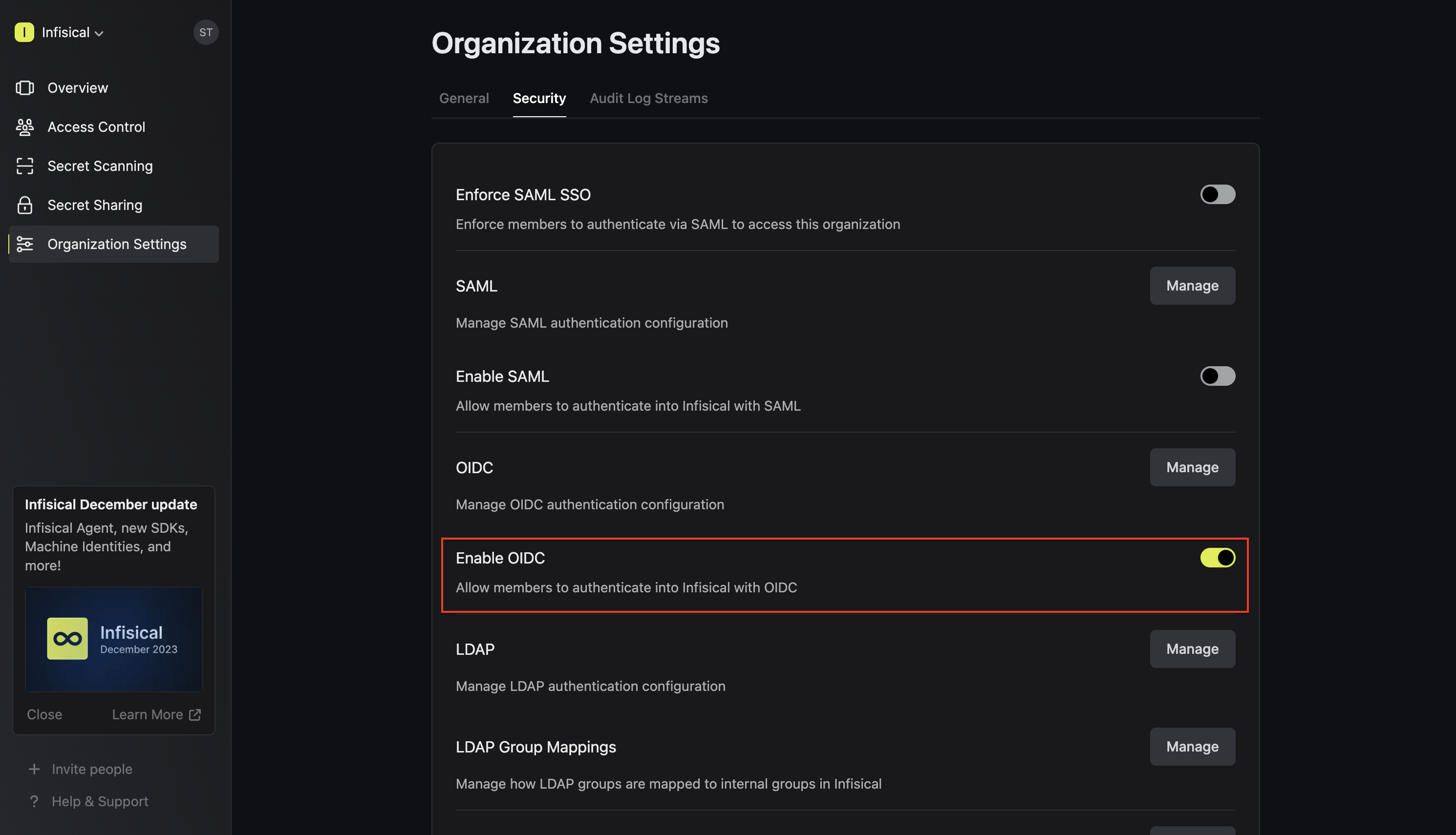
If you’re configuring OIDC SSO on a self-hosted instance of Infisical, make
sure to set the
AUTH_SECRET and SITE_URL environment variable for it to
work: - AUTH_SECRET: A secret key used for signing and verifying JWT. This
can be a random 32-byte base64 string generated with openssl rand -base64 32. - SITE_URL: The URL of your self-hosted instance of Infisical - should
be an absolute URL including the protocol (e.g. https://app.infisical.com)